

Payment Settings
Go to module settings: WPify → WPify Woo → QR Payment
Adding a Payment Method
Section titled “Adding a Payment Method”In the “Enabled payment methods” section, click the “Add payment method” button and select the desired payment method from the list of active methods.
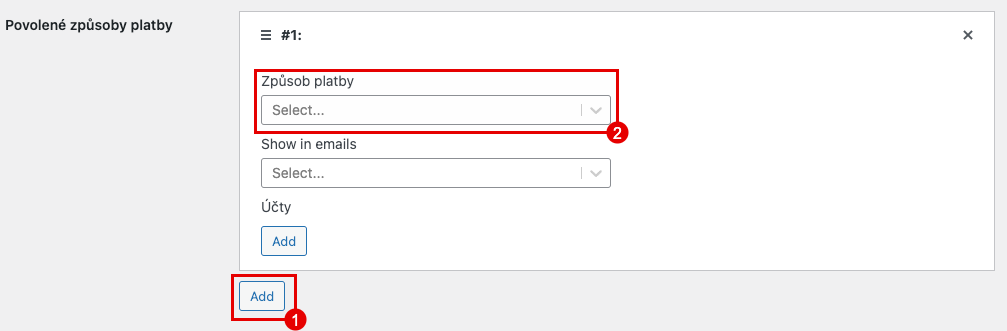
For each payment method, you can configure:
- Emails in which the QR code should be inserted
- One or more bank accounts
Email Settings
Section titled “Email Settings”In the “Show in emails” field, select the types of emails in which the QR code should be inserted.
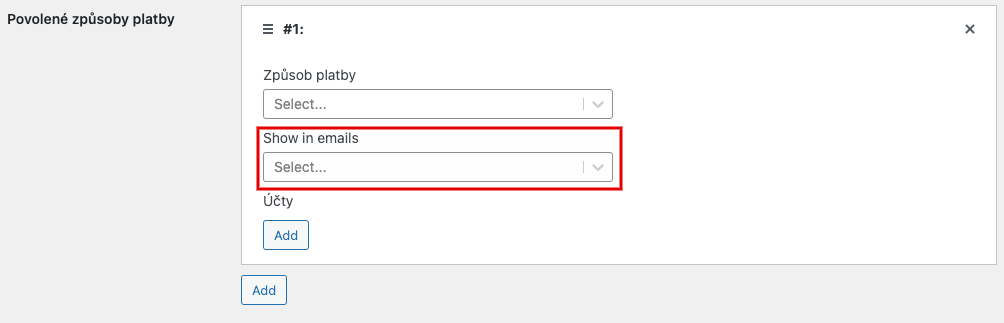
Available email types depend on your WooCommerce configuration. Typically:
- New order (for administrator)
- Customer on-hold order
- Customer processing order
- Customer completed order
Adding a Bank Account
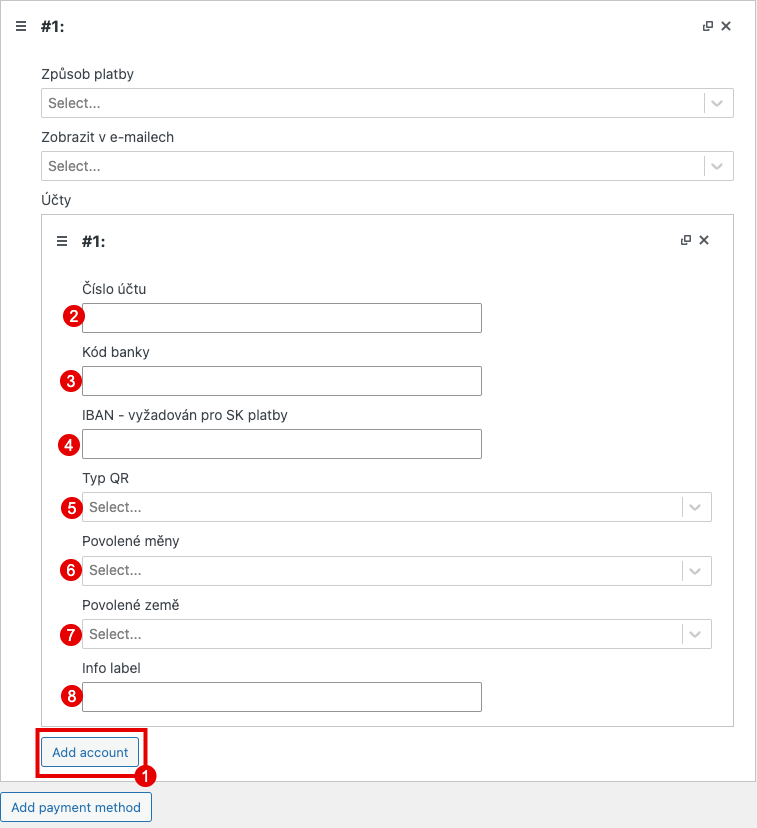
Section titled “Adding a Bank Account”For each payment method, add one or more bank accounts by clicking “Add account”.
Account Data Source
Section titled “Account Data Source”In the “Account data source” field, you can select:
| Option | Description |
|---|---|
| Manual | You will manually fill in the account details below |
| [Account name from BACS] | Data will be loaded from WooCommerce BACS payment settings |
Bank Account Details
Section titled “Bank Account Details”If you select “Manual” as the data source:
| Field | Description | Required for |
|---|---|---|
| IBAN | International account number | SK, HU, EPC |
| Account number | Account number without bank code | CZ |
| Bank Code | Four-digit bank code | CZ |
| BIC (SWIFT) | SWIFT code of the bank | HU, EPC |
| Recipient name | Recipient name / company name | SK, HU, EPC (recommended for CZ too) |
QR Code Type
Section titled “QR Code Type”In the “QR Type” field, select the standard:
| Option | When to use |
|---|---|
| Auto detect by order ⭐ | Automatically based on order country and currency (recommended) |
| QR Platba – CZ + CZK | Only for Czech payments in CZK |
| Pay BY Square – SK + EUR | Only for Slovak payments in EUR |
| Hungary standard – HU + HUF | Only for Hungarian payments in HUF |
| EPC standard (SEPA) | For SEPA payments in EUR |
Account Restrictions
Section titled “Account Restrictions”You can limit when the account is used:
| Field | Description |
|---|---|
| Enabled currencies | Currencies for which the account will be used (displayed only for “Auto” type) |
| Enabled countries | Countries for which the account will be used (based on billing address) |
| Info label | Label to distinguish multiple QR codes |
Saving Changes
Section titled “Saving Changes”After making all changes, save the settings using the button at the bottom of the page.