

Settings
Go to the module settings: WPify → WPify Woo → Heureka Verified by Customers
Basic Settings
Section titled “Basic Settings”Country Selection
Section titled “Country Selection”
In the “Country” field, select the country for which you want to use the service:
- Heureka CZ - for heureka.cz
- Heureka SK - for heureka.sk
API Key
Section titled “API Key”
In the “Api Key” field, enter your unique 32-character key.
You can find the key in the Heureka.cz e-shop administration:
- Log in to the Heureka administration
- Select the e-shop for which you want to set up the service
- Find the Verified by Customers section and copy the API key
Opt-out / Opt-in Settings
Section titled “Opt-out / Opt-in Settings”According to GDPR, customers must have the option to refuse or consent to receiving the survey.
Activation
Section titled “Activation”Enable “Enable Opt-Out” to add a checkbox to the checkout before the submit order button.
Checkbox Text
Section titled “Checkbox Text”In the “Enable Opt-Out Text” field, customize the checkbox text.
Recommended text:
I do not agree to receive the satisfaction survey as part of the Verified by Customers program, which helps improve your services.
Opt-in Mode
Section titled “Opt-in Mode”Enable “Use Opt-In instead of Opt-Out” to change the logic:
| Mode | Behavior |
|---|---|
| Opt-out (default) | The survey is sent if the customer does not check the checkbox |
| Opt-in | The survey is sent only if the customer checks the checkbox |
Verified by Customers Widget
Section titled “Verified by Customers Widget”The widget displays the e-shop certification from the Heureka service.
Prerequisites
Section titled “Prerequisites”Your e-shop must have an active “Verified by Customers” certificate from Heureka.
Widget Activation
Section titled “Widget Activation”- Enable “Enable Certification Widget”
- In the “Certification widget code” field, enter the widget code from the Heureka administration

Widget Example
Section titled “Widget Example”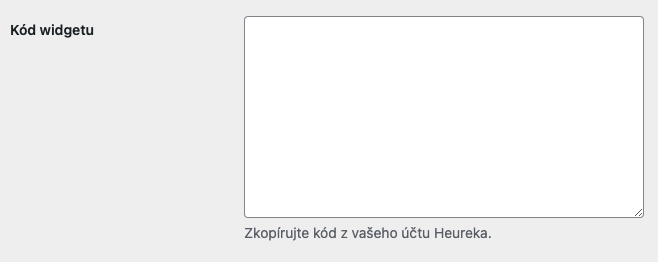
Controlling Widget Display
Section titled “Controlling Widget Display”For programmatic control of widget display, use the filter - see developer documentation.
Asynchronous Sending
Section titled “Asynchronous Sending”By default, data is sent to Heureka synchronously when the order is completed (Heureka requirement).
If you have performance issues or timeouts, enable “Send asynchronously”. Data will be sent in the background using Action Scheduler.
Saving Changes
Section titled “Saving Changes”After making all changes, save the settings using the button at the bottom of the page.