

Creating a Discount Rule
Where to create a rule?
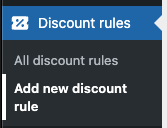
Section titled “Where to create a rule?”WordPress Admin → Discount Rules → Add new discount rule
Basic Steps
Section titled “Basic Steps”- Basic settings — name, activation, priority
- Select discount type — product, cart, BOGO…
- Application mode — how the discount is displayed
- Rules — filters and discounts
- Conditions — when the discount activates
- Visual settings — label, countdown
- Publishing
1. Basic Settings
Section titled “1. Basic Settings”Rule Name
Section titled “Rule Name”- Primarily for administrator reference
- On the frontend, the Label from visual settings is displayed
Rule Activation
Section titled “Rule Activation”- Toggle to enable/disable without deleting
Priority
Section titled “Priority”- Lower number = higher priority (processed first)
- Default: 0, negative numbers can also be used
Exclusive Discount (Stop processing)
Section titled “Exclusive Discount (Stop processing)”- Stops processing rules with lower priority
- Suitable for “best offer” promotions
Include Backorder Products
Section titled “Include Backorder Products”- Determines whether products with “backorder” status are included in discount targets
- Enabled (default): Backorder products appear in gift selection or are added automatically
- Disabled: Only in-stock products are shown/added
- This setting is relevant only for Manual Select and Auto Add modes
2. Select Discount Type
Section titled “2. Select Discount Type”| Type | Usage |
|---|---|
| Product discounts | On specific products |
| Cart discounts | On the entire cart |
| Bulk discounts | Progressive discounts based on quantity |
| Bundle discounts | Discount for an exact quantity |
| Buy X Get X | BOGO same product |
| Buy X Get Y | BOGO different products |
| Free Gift | Choose a gift from a list |
| Upsell | Add-on products with a purchase |
For a detailed comparison of all types, see the Discount Types Overview.
3. Application Mode
Section titled “3. Application Mode”- Auto Price — discount applied directly to the price (Product, Bulk, Bundle)
- Fee Based — discount as a line item in the cart (Cart, BOGO)
- Manual Select — customer selects a gift (Free Gift, BOGO, Upsell)
- Auto Add — gift added automatically (Free Gift, BOGO)
- Upsell in Cart Item — checkbox offer in the cart row (Upsell, BOGO, Free Gift)
For some discount types (BOGO, Free Gift), you can select multiple compatible modes at once. Incompatible modes are shown as disabled.
See Application Modes for more information.
4. Rules
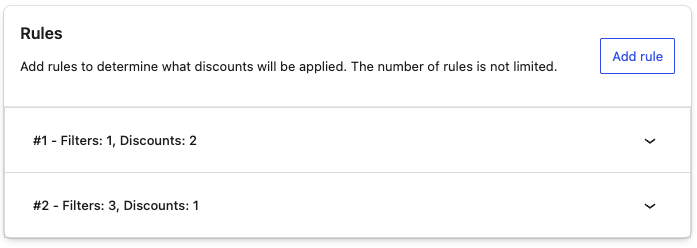
Section titled “4. Rules”You can add an unlimited number of rules; they operate using OR logic between each other.
Filters
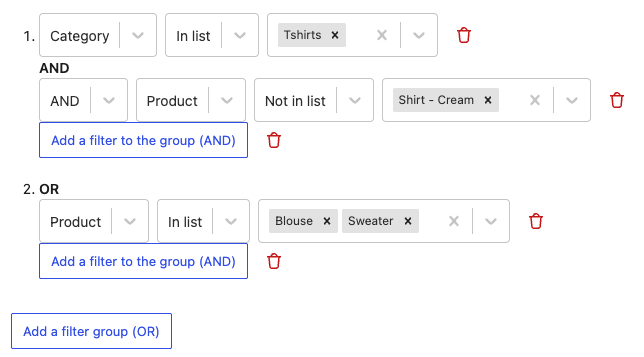
Section titled “Filters”Determine WHAT the rule applies to:
- Specific products
- Categories
Logic: Between groups: OR | Within a group: AND
Discount
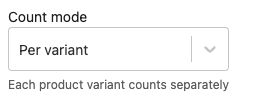
Section titled “Discount”- For Product and Cart: discount type + value
- For Bulk, Bundle, BOGO: ranges with min/max quantity
Price Rounding
Section titled “Price Rounding”Only for percentage discounts:

| Mode | Example |
|---|---|
| WooCommerce default | No rounding |
| Whole numbers | 80.50 → 81.00 |
| Always .99 | 80.00 → 79.99 |
| Always .90 | 80.00 → 79.90 |
| Ending in 9 | 85 → 89 |
Discount Calculation Base
Section titled “Discount Calculation Base”Determines which price the discount is calculated from. Important when combining multiple discounts on the same product.
| Mode | Description | Example |
|---|---|---|
| Current price (default) | Discount is calculated from the price after previous discounts | Product $100 → 20% off → $80 → BOGO 50% = $40 |
| Original price | Discount is always calculated from the regular price | Product $100 → 20% off → $80 → BOGO 50% of original $100 = $50 |
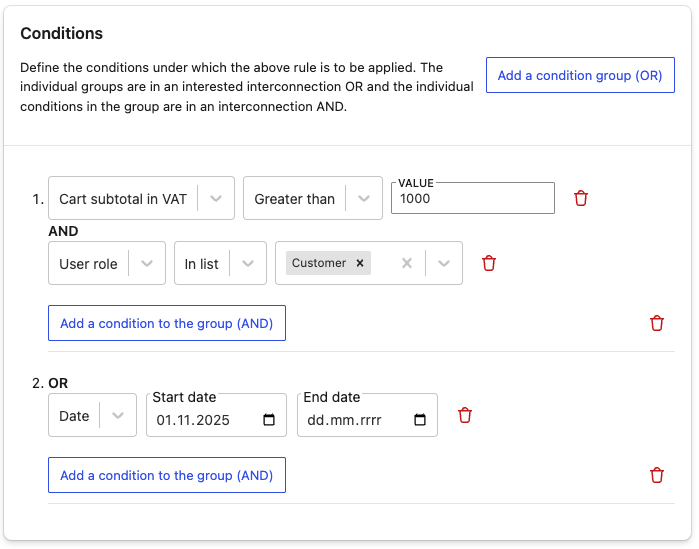
5. Conditions
Section titled “5. Conditions”Determine WHEN the discount activates:
- Cart subtotal (incl./excl. tax)
- Cart subtotal after discounts
- Cart total
- Cart weight
- Item count
- Date (from/to)
- Specific users
- User role
Logic: Between groups: OR | Within a group: AND
Operators: equal, not equal, greater than, less than, greater than or equal, less than or equal
6. Visual Settings
Section titled “6. Visual Settings”- Name displayed to customers in the cart and order
- If empty, the rule name is used
- Recommended to fill in for clarity
7. Publishing
Section titled “7. Publishing”Pre-publish Checklist
Section titled “Pre-publish Checklist”- Name assigned
- Rule enabled
- Priority set
- Type selected
- Application mode configured
- At least one Rule created
- Filters configured
- Discount/Ranges set
- Conditions (if needed)
- Label filled in
Publishing Steps
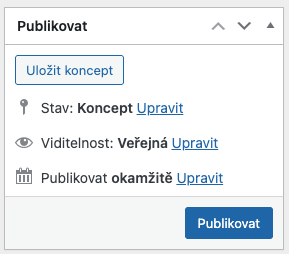
Section titled “Publishing Steps”- Click the Publish button
- Clear cache (if using a cache plugin)
- Test with an administrator-only condition