

Application Modes
Application modes determine how discounts are displayed and applied to customers in the store.
Mode Overview by Discount Type
Section titled “Mode Overview by Discount Type”| Discount Type | Available Modes |
|---|---|
| Product discounts | Auto Price |
| Bulk discounts | Auto Price |
| Bundle discounts | Auto Price |
| Cart discounts | Fee Based |
| Buy X Get X (BOGO X) | Fee Based, Manual Select (cart), Manual Select (product), Auto Add, Upsell in Cart Item |
| Buy X Get Y (BOGO Y) | Fee Based, Manual Select (cart), Manual Select (product), Auto Add, Upsell in Cart Item |
| Free Gift | Manual Select (cart), Manual Select (product), Auto Add, Upsell in Cart Item |
| Upsell | Upsell in Cart Item, Manual Select (cart), Manual Select (product) |
Combining Application Modes
Section titled “Combining Application Modes”Some discount types (BOGO X, BOGO Y, Free Gift) allow you to select multiple application modes at once. Modes are divided into compatible groups:
| Group | Modes | Description |
|---|---|---|
| Price | Auto Price | Modifies the product price |
| Item | Manual Select (cart), Manual Select (product), Auto Add, Upsell in Cart Item | Adds an item to the cart |
| Fee | Fee Based | Adds the discount as a fee |
Combination rules:
- You can only combine modes from the same group
- When you select the first mode, incompatible modes from other groups are shown as disabled
- To select a mode from a different group, first remove all selected modes
Example: For Free Gift, you can combine Manual Select (cart) + Auto Add — the customer sees a selection in the cart while a recommended gift is also automatically added.
Auto Price
Section titled “Auto Price”The discount is displayed as a reduced product price.
How it works
Section titled “How it works”- The discount is calculated directly into the product price
- The original price is shown crossed out alongside the new price
- Automatic calculations when the product is loaded
Visual Examples
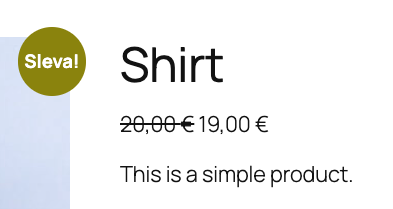
Section titled “Visual Examples”Product page: Original price crossed out, new price highlighted.
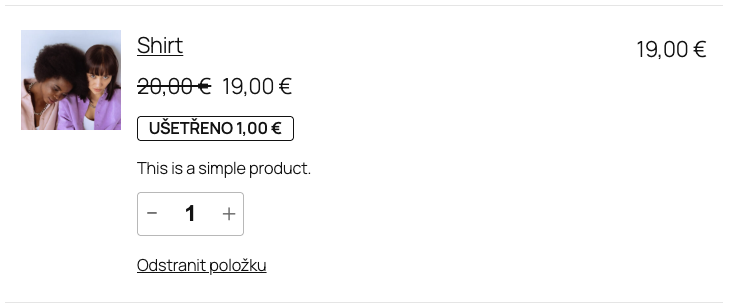
In cart: Same representation with the discount.
When to use
Section titled “When to use”Suitable for:
- Product discounts
- Bulk discounts
- Bundle discounts
Advantages:
- Clear display
- Customer perceives the discount immediately
- Standard WooCommerce appearance
- Good conversion
Disadvantages:
- Not suitable for cart discounts
- Less flexibility for reporting
Fee Based
Section titled “Fee Based”The discount is displayed as a separate line item in the cart.
How it works
Section titled “How it works”- The discount is not applied to the product price
- It appears as a separate row (negative fee)
- The row name matches the rule name
Visual Examples
Section titled “Visual Examples”Product page: No application.
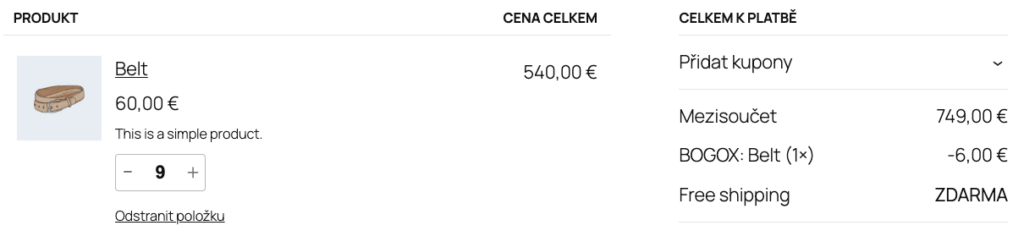
In cart: A separate row with the discount.
When to use
Section titled “When to use”Suitable for:
- Cart discounts
- Buy X Get X (BOGO X)
- Buy X Get Y (BOGO Y)
- Discounts with a detailed breakdown
Advantages:
- Precise discount tracking
- Easy reporting
- Flexibility for various discount types
Disadvantages:
- Less intuitive for users
- More rows in the cart
- Product price does not change
Manual Select
Section titled “Manual Select”The customer selects from a list of products/gifts.
There are two display modes:
| Mode | Where it appears | When to use |
|---|---|---|
| Manual Select (cart) | On the cart page | Customer selects after adding a trigger product to the cart |
| Manual Select (product) | On the product page | Customer selects directly on the product page (upsell) |
How it works
Section titled “How it works”- The customer meets the rule conditions (e.g., has the trigger product in the cart)
- A selection of available products/gifts is displayed
- The customer clicks and selects a preferred product
- The selected product is added to the cart with a discount
Difference between modes
Section titled “Difference between modes”Manual Select (cart):
- The selection appears on the cart page
- Suitable when the customer is already shopping
Manual Select (product):
- The selection appears on the product page of the trigger product
- Suitable for upselling — “Add this product and get a discount on…”
- The selection only appears if the current product meets the trigger conditions of the rule
Visual Example
Section titled “Visual Example”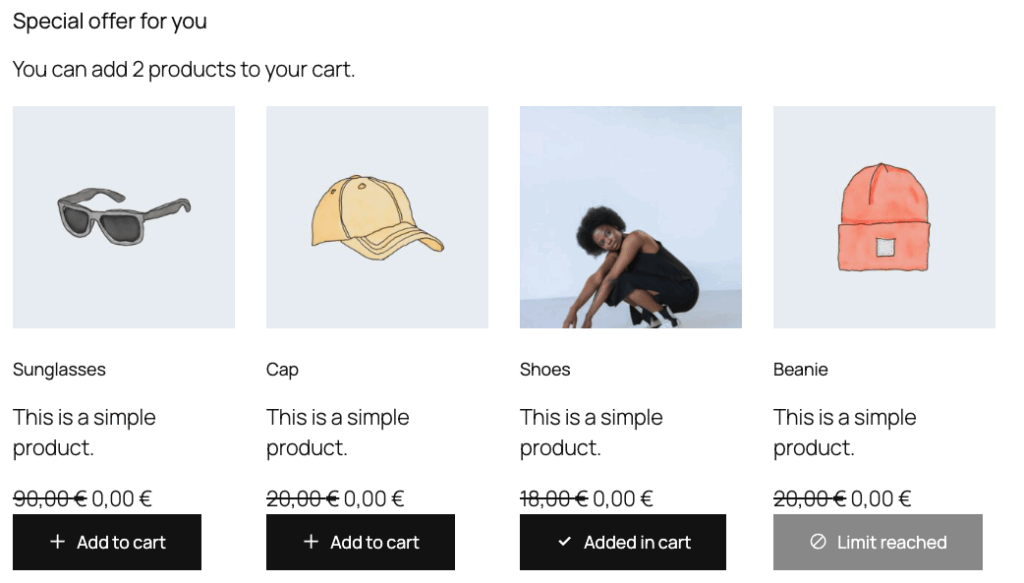
Display Positions
Section titled “Display Positions”Each mode has its own positions:
Cart:
| Position | Description |
|---|---|
| Not show or custom position | Custom position (shortcode) |
| Before cart table | Displayed above products |
| After cart table | Recommended |
| Before cart collaterals | Before total prices |
| End of cart page | After all elements |
Product page:
| Position | Description |
|---|---|
| Custom/Shortcode only | Custom position (shortcode) |
| In Info Block | Inside the discount info block |
| Before add to cart | Before the “Add to cart” button |
| After add to cart | After the “Add to cart” button |
| After product meta | After product tags and categories |
Custom Selection Texts
Section titled “Custom Selection Texts”Settings: Visual options → Manual Select UI
| Field | Description |
|---|---|
| Show custom text | Toggle to display custom texts |
| Selection title | Heading above the selection (e.g., “Choose your gift”) |
| Selection description | Description below the heading |
When to use
Section titled “When to use”Suitable for:
- Free Gifts
- Buy X Get Y (BOGO Y)
- Situations requiring customer selection
Advantages:
- Customer has control over the selection
- Increases engagement
- Product page mode works as upsell
Disadvantages:
- Requires action from the customer
Shortcodes
Section titled “Shortcodes”| Mode | Shortcode |
|---|---|
| Cart | [wpify_discount_selection] |
| Product page | [wpify_discount_product_selection] |
The product_id attribute for the product shortcode allows you to display the selection for a specific product anywhere on the site.
Auto Add
Section titled “Auto Add”The product is automatically added to the cart without customer interaction.
How it works
Section titled “How it works”- The system automatically adds a product to the cart when conditions are met
- The customer does not need to select anything — the gift is added automatically
- If the customer removes the product, the offer will not reappear (within the session)
When to use
Section titled “When to use”Suitable for:
- Free Gifts — one specific gift
- Situations where you do not want to force the customer to choose
- Automatic order bonuses
Advantages:
- No action required from the customer
- Fast and straightforward
- Suitable for one specific gift
Disadvantages:
- Customer has no choice
- If the customer removes it, the offer disappears
- Less suitable for multiple gift options
Behavior on removal
Section titled “Behavior on removal”If the customer removes an automatically added product from the cart:
- The system remembers the rejection (reject flag)
- The product will not be re-added within this session
- On a new session or cart clearing, the offer is restored
Backorder Products
Section titled “Backorder Products”In the rule settings, you can disable “Include backorder products” — only in-stock products will then be automatically added.
Upsell in Cart Item
Section titled “Upsell in Cart Item”The discount offer is displayed as a checkbox directly in the trigger product row in the cart.
How it works
Section titled “How it works”- The customer has a trigger product in the cart
- A checkbox with the discount offer appears below the product name
- The customer checks the checkbox
- The product is added to the cart with a discount (hidden from the listing, visible only as a checkbox)
- Unchecking removes the product
Visual Example
Section titled “Visual Example”The checkbox appears directly below the trigger product name in the cart row — it includes the image, name, price, and optionally quantity.
When to use
Section titled “When to use”Suitable for:
- Upsell — add-on products next to the trigger product
- Free Gifts — quick selection without leaving the cart
- Buy X Get Y (BOGO Y) — cross-sell next to the trigger product
- Buy X Get X (BOGO X) — inline BOGO offer
Advantages:
- Minimal disruption to the shopping process
- The offer is right next to the relevant product
- Quick interaction (one click)
- AJAX without page reload
Disadvantages:
- Limited space for displaying details
- Only on the cart page (classic cart)
Difference from Manual Select
Section titled “Difference from Manual Select”| Manual Select | Upsell in Cart Item | |
|---|---|---|
| Position | Standalone block (before/after cart) | Directly in the trigger product row |
| UI | Grid/List with buttons | Simple checkbox |
| Added item visibility | Separate row in the cart | Hidden from the listing, visible only as a checkbox |
| Interaction | Button click | Check/uncheck |
Global Application Mode Settings
Section titled “Global Application Mode Settings”Global settings for all application modes can be found at:
WooCommerce → Settings → WPify Woo → Discount Rules → tab Application Modes
Manual Select - Global Settings
Section titled “Manual Select - Global Settings”Both modes (cart and product page) share the same settings:
| Setting | Description | Default |
|---|---|---|
| Layout style | Product layout in the selection | Grid |
| Default display position | Default position (can be overridden per rule) | Cart: After cart table, Product: In Info Block |
| Hidden elements | Elements hidden in the selection | Short description, Quantity input |
| Hide unavailable products | Hide products with exhausted limits | Disabled |
Layout styles
Section titled “Layout styles”| Style | Description |
|---|---|
| Grid | Responsive grid (recommended) |
| Compact grid | Compact grid for smaller products |
| List | Vertical list |
Hiding elements
Section titled “Hiding elements”You can hide: Product image, Product title, Variation attributes, Short description, Price, Stock status, Entitlement info, Quantity input, Button label.
Upsell in Cart Item - Global Settings
Section titled “Upsell in Cart Item - Global Settings”| Setting | Description | Default |
|---|---|---|
| Hidden elements | Elements hidden in the checkbox offer | Short description, Quantity |
| Hide unavailable products | Hide products with exhausted limits | Disabled |
| Display rule label | Show the rule name above the offers | Disabled |
| Visible items count | Number of visible items (accordion) | Empty (all visible) |
Hiding elements
Section titled “Hiding elements”You can hide: Product image, Product title, Variation attributes, Short description, Link to product, Price, Quantity.
Rule label
Section titled “Rule label”When Display rule label is enabled, the translated rule name is shown as a heading above the checkboxes for that rule. Each rule has its own label.
Accordion (collapsing offers)
Section titled “Accordion (collapsing offers)”The Visible items count setting controls how many offers are visible — the rest are hidden behind a “More offers” / “Hide offers” button.
| Value | Behavior |
|---|---|
| Empty (not set) | Disabled — all items visible, no button |
| 0 | All items hidden, only the label + button are shown |
| 2 (example, 5 targets) | 2 visible + button to expand the remaining 3 |
| 10 (example, 3 targets) | 3 visible, no button (fewer targets than the limit) |
Auto Add - Global Settings
Section titled “Auto Add - Global Settings”| Setting | Description | Default |
|---|---|---|
| Force add (ignore rejection) | Forced adding without the option to reject | Disabled |
| Product selection strategy | How to select a product when multiple options exist | Cheapest first |
Product selection strategy
Section titled “Product selection strategy”| Strategy | Description |
|---|---|
| Cheapest first | Adds the cheapest available product |
| Most expensive first | Adds the most expensive available product |
| First matching | Adds the first product in order without sorting |
Forced adding
Section titled “Forced adding”When Force add is enabled:
- The customer cannot remove automatically added products
- Products are always re-added when the rule conditions are met
- Suitable for mandatory order items
Fee Based - Global Settings
Section titled “Fee Based - Global Settings”| Setting | Description | Default |
|---|---|---|
| Tax of cart discount | Tax class for the discount (negative fee) | Spread across VAT classes |
Tax classes
Section titled “Tax classes”| Option | Description |
|---|---|
| Not taxable | Discount without VAT |
| Spread across VAT classes | VAT is distributed across cart items |
| Specific class | Uses the selected tax class |
Pricing Tables - Global Settings
Section titled “Pricing Tables - Global Settings”Settings for pricing tables displayed on the product page (Bulk/Bundle discounts).
| Setting | Description | Default |
|---|---|---|
| Hide pricing table | Hide the pricing table on the product page | Disabled |
| Table style | Table style | Horizontal |
| Hide discount percentage | Hide the discount percentage column | Disabled |
Table styles
Section titled “Table styles”| Style | Description |
|---|---|
| Horizontal | Standard horizontal table |
| Vertical | Vertical display (rows stacked) |
Frequently Asked Questions
Section titled “Frequently Asked Questions”How to apply Fee Based to product discounts?
Product discounts only support Auto Price. If you need a fee-based display, use a cart discount with conditions targeting specific products or categories.