

General Settings
General settings are located at WooCommerce → Settings → Wpify Woo → WPify Woo Product Vouchers. Always save changes using the button at the bottom of the page.
Status for Generating Coupons
Section titled “Status for Generating Coupons”Select which order statuses trigger automatic coupon code creation. When an order transitions to one of the selected statuses, coupons are generated for all voucher products in the order.
Recommended statuses: Processing or Completed.
Statuses for Deleting Coupons
Section titled “Statuses for Deleting Coupons”Select which order statuses trigger automatic coupon deletion. This prevents misuse of coupons from cancelled or refunded orders.
Recommended statuses: Cancelled, Failed, Refunded.

Select Voucher Template Page
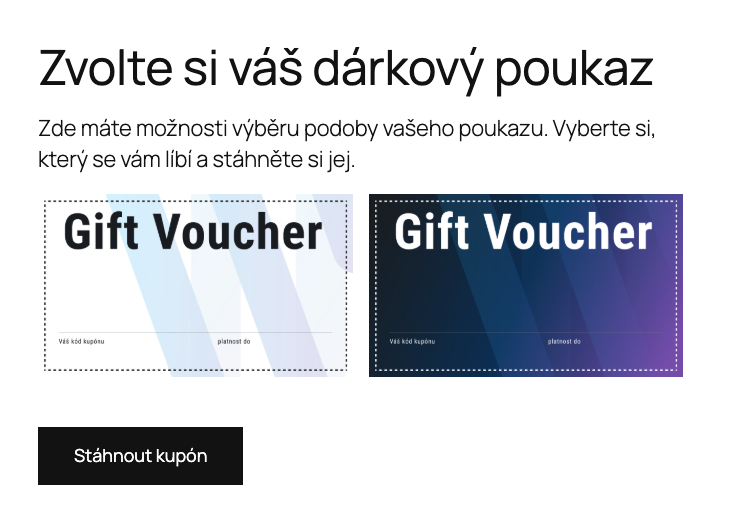
Section titled “Select Voucher Template Page”Select the WordPress page where customers can choose their voucher template and download the generated voucher.
To set this up:
- Create a new WordPress page (e.g., “Choose your gift voucher”)
- Add the shortcode
[wpify_woo_vouchers_select_voucher]to the page content - Publish the page
- Select the page in this setting

Download voucher text
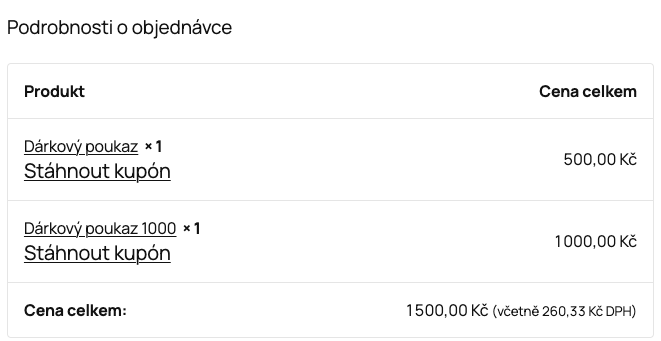
Section titled “Download voucher text”The text displayed as the download link for customers (e.g., “Download your voucher”). This link appears in order details, emails, and thank-you pages.

Voucher Output Type
Section titled “Voucher Output Type”Choose the output format for generated vouchers:
- PDF (recommended) — generates vouchers as PDF files. Better print quality, supports custom fonts with full UTF-8 encoding. If a PDF file is used as a template background, PDF output is always used regardless of this setting.
- Image (JPG) — generates vouchers as JPG images. Legacy option, suitable for simple templates.
Upload custom fonts (TTF or OTF) for use in voucher templates. Each font needs a Label for identification and a Font file upload.
- Recommended format: TTF (e.g., Noto Sans) for full UTF-8 support in both image and PDF vouchers
- OTF fonts may work for image output, but PDF embedding requires TTF
- If no custom font is selected for a text element, the bundled Noto Sans font is used (supports Latin, Cyrillic, Greek and other Unicode characters)
Additional text in emails
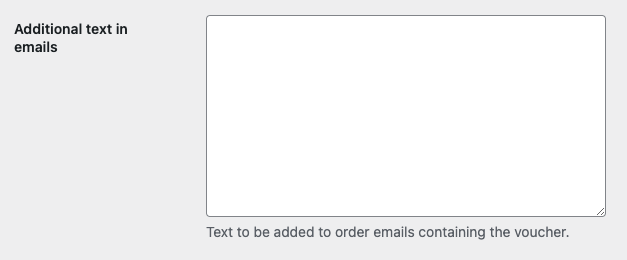
Section titled “Additional text in emails”Text added to standard WooCommerce email notifications when the order contains a voucher (e.g., “Your gift voucher can be found in the attachment of this email”).
Testing
Section titled “Testing”After completing the setup, create a test order with a voucher product to verify:
- Coupons are generated at the correct order status
- The voucher email or attachment is delivered correctly
- The generated coupon code works when applied at checkout
- Coupons are deleted when orders are cancelled