

Email Configuration
The plugin offers several options for delivering vouchers to customers via email.
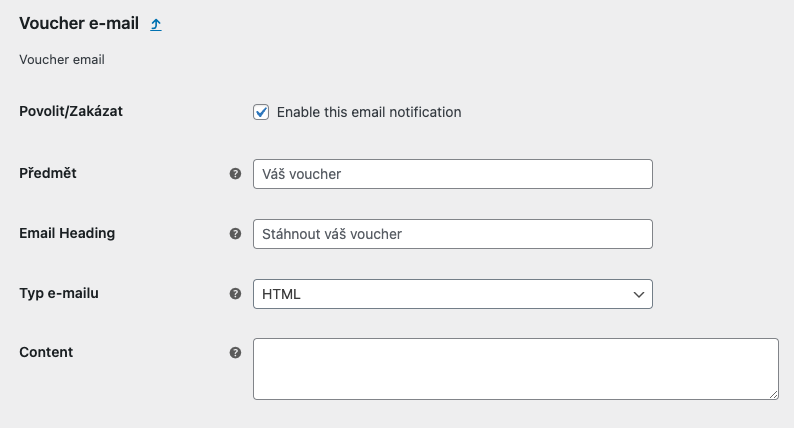
Custom Voucher Email
Section titled “Custom Voucher Email”The plugin adds a custom email template called Voucher e-mail that can be used specifically for sending vouchers.
Configuring the Voucher Email
Section titled “Configuring the Voucher Email”- Go to WooCommerce → Settings → Emails
- Find Voucher e-mail in the list
- Click to open its settings

You can customize:
- Email subject line
- Email heading
- Email content
- HTML/CSS template (for advanced users)

Triggering the Voucher Email
Section titled “Triggering the Voucher Email”- Go to WooCommerce → Settings → Wpify Woo → WPify Woo Product Vouchers
- In Order statuses for voucher email, select which order statuses trigger sending the voucher email
- Leave empty to disable the voucher email entirely
Recommended status: Completed — ensures the voucher is sent only after successful order completion.
Attaching Vouchers to Emails
Section titled “Attaching Vouchers to Emails”You can attach the generated voucher (as a file) to any WooCommerce email:
- In the plugin settings, find Attach voucher to emails
- Select which email notifications should include the voucher as an attachment

Recommended emails:
- Voucher e-mail — the custom voucher email template
- Completed order — standard order completion notification
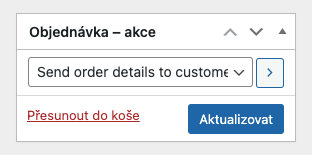
- Order details — useful for resending vouchers via the admin action “Send order details to customer”
Disabling Emails for Voucher-Only Orders
Section titled “Disabling Emails for Voucher-Only Orders”If an order contains only gift vouchers (no physical products), you can disable standard WooCommerce emails that are not relevant:
- In the plugin settings, find Disabled emails for voucher only orders
- Select emails that should not be sent for voucher-only orders

Recommended to disable:
- Processing order
- Completed order
This ensures customers receive only the voucher email, avoiding unnecessary notifications.