

Shipping Methods
Configure shipping methods and services in WooCommerce → Wpify Modules → DPD.
Default Service
Section titled “Default Service”
The DPD service used by default for shipments where no specific service is assigned in the other shipping methods mapping.
Available DPD services:
| Code | Service Name | Description |
|---|---|---|
| 001 | DPD CLASSIC | Standard delivery to address |
| 013 | DPD Private | Delivery to private address with notification |
| 022 | DPD 10:00 | Guaranteed delivery by 10:00 |
| 023 | DPD 12:00 | Guaranteed delivery by 12:00 |
| 010 | DPD 18:00 / GUARANTEE | Guaranteed delivery by 18:00 |
| 030 | DPD EXPRESS | Express delivery |
| 610 | DPD Shop2Home | Delivery from parcel shop to address |
Adding the Parcel Shop Shipping Method
Section titled “Adding the Parcel Shop Shipping Method”The plugin adds a Parcel Shop shipping method to WooCommerce. When enabled, customers can select a DPD pickup point during checkout using the official DPD widget with a map.
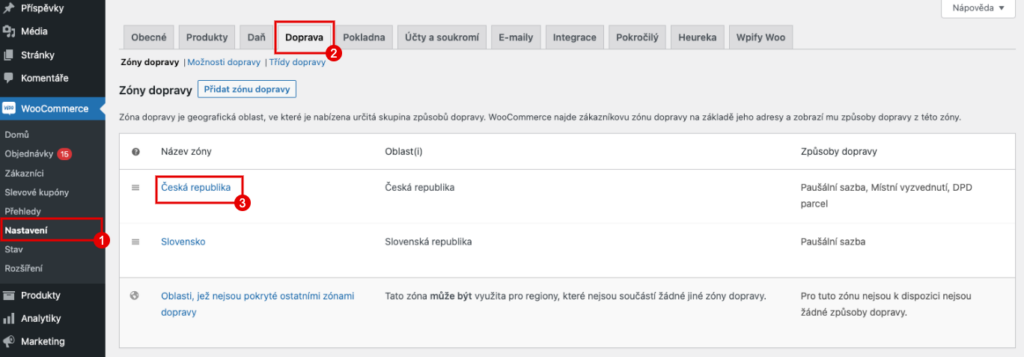
- Go to WooCommerce → Settings → Shipping (1, 2)
- Select the shipping zone where you want to add the method (3)
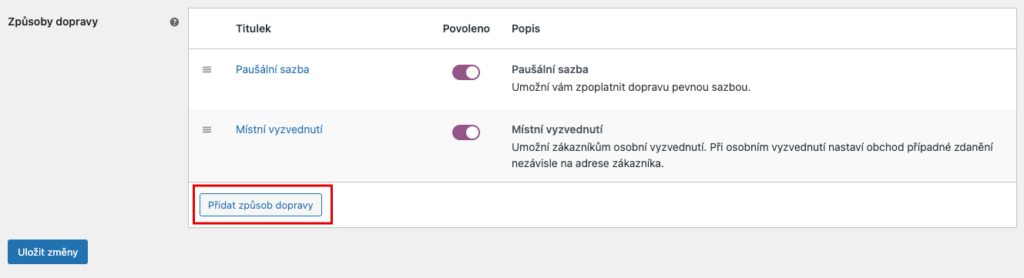
- Click Add shipping method
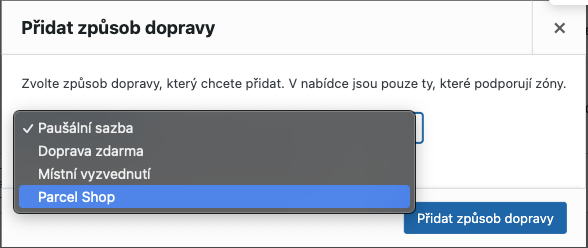
- Select Parcel Shop and confirm with Add shipping method
- Click Edit on the newly added method

- Configure the method name, tax status, cost and other settings. Save changes.
Adding Address Delivery
Section titled “Adding Address Delivery”For delivery to the customer’s address (not to a parcel shop), add a standard WooCommerce shipping method:
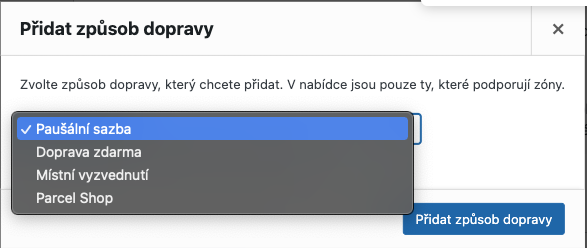
- In the shipping zone, click Add shipping method
- Select e.g. Flat rate or Free shipping
- Configure the name, cost and other parameters
- Save changes
To send these methods to DPD, you must map them to a DPD service — see Other Shipping Methods Mapping below.
Parcel Shop Settings
Section titled “Parcel Shop Settings”
| Field | Description |
|---|---|
| Replace shipping address | When enabled, the customer’s WooCommerce shipping address is replaced with the selected parcel shop address when the order is submitted |
| Parcels as Shop2Shop | Use DPD Shop2Shop service for parcel shop deliveries |
| Filter Parcels to only ParcelShops | Limit the selection to only ParcelShops, excluding DPD lockers |
Other Shipping Methods Mapping
Section titled “Other Shipping Methods Mapping”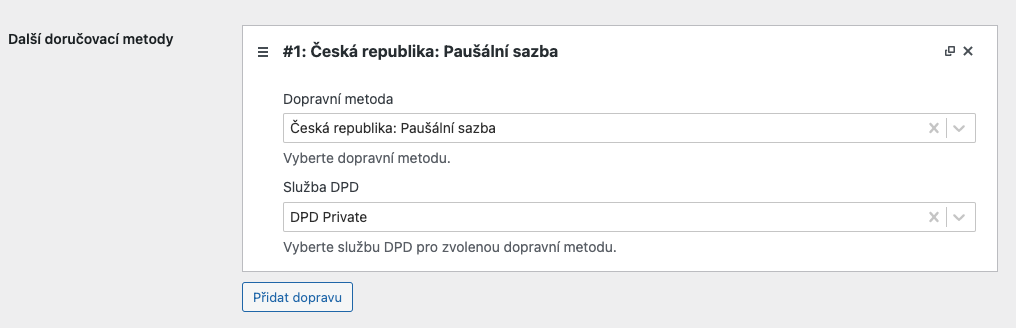
Map your existing WooCommerce shipping methods to DPD services. Click Add Transport and for each mapping specify:
- Shipping method — the WooCommerce shipping method
- DPD service — the DPD service to use for this method
If no DPD service is selected, the Default service is used.
Email Tracking
Section titled “Email Tracking”
Email tracking text (1)
Section titled “Email tracking text (1)”Text displayed in WooCommerce emails when shipments in the order have a tracking number assigned. Use the {tracking} tag, which will be replaced with tracking links.
Email tracking position (2)
Section titled “Email tracking position (2)”Where in the confirmation email to display tracking links:
| Value | Description |
|---|---|
| After customer details | Display tracking after the customer details section |
| Before customer details | Display tracking before the customer details section |
| After order details | Display tracking after the order details section |
| Before order details | Display tracking before the order details section |