

DPD Connection
Configure the DPD API connection in WooCommerce → Wpify Modules → DPD.
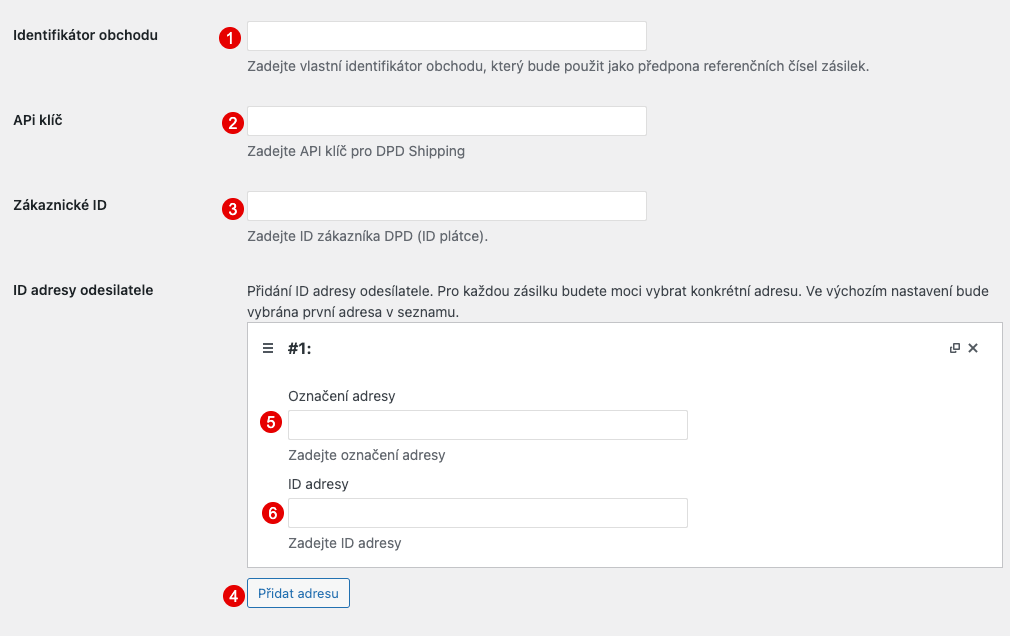
Store Identifier (1)
Section titled “Store Identifier (1)”Optional identifier used as a prefix for shipment reference numbers. Useful if you operate multiple stores connected to a single DPD account — helps distinguish the origin of orders.
API Key (2)
Section titled “API Key (2)”Key for the DPD Shipment API. You will receive it from DPD after signing a commercial shipping contract — contact DPD CZ sales department.
Customer ID (3)
Section titled “Customer ID (3)”Your DPD customer number (payer ID). You can find it in the DPD Shipping application under User and Application Settings → User List in the Customer column.
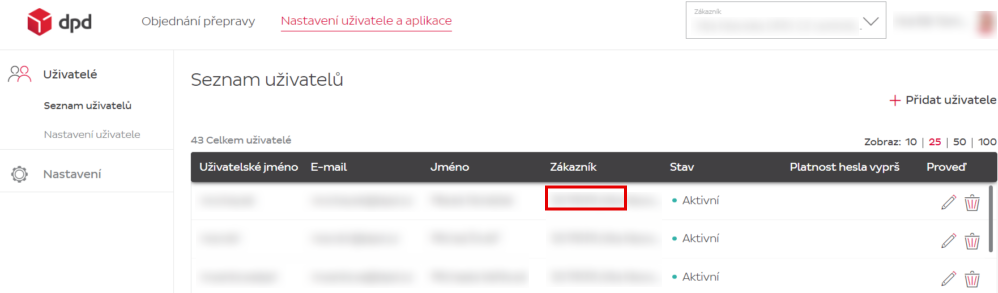
Sender Address IDs (4, 5, 6)
Section titled “Sender Address IDs (4, 5, 6)”Add sender addresses. Click Add Address (4) and fill in:
Address Label (5)
Section titled “Address Label (5)”Custom name for the address for easier identification (e.g., “Main Warehouse”, “Prague Branch”).
Address ID (6)
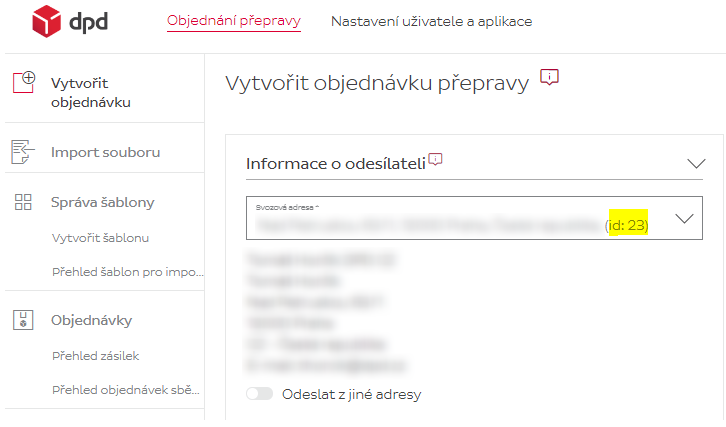
Section titled “Address ID (6)”Address number assigned by DPD for pickup locations. You can find it in the DPD Shipping application under Order Transport → Create Order — in the Pickup Address field, shown after the address name in parentheses (e.g., “id: 23”).
Detailed Debug Log
Section titled “Detailed Debug Log”Enable this option to log detailed information about all processes and data for debugging purposes. This feature may store sensitive data, we recommend enabling it only for as long as is strictly necessary to identify potential issues.
When enabled, the following is logged to WPify Logs:
- API communication — complete requests and responses from the DPD Shipping API
- Checkout — parcel shop selection, order data saving (both classic and block checkout)
- Address replacement — details of shipping address replacement with parcel shop address